


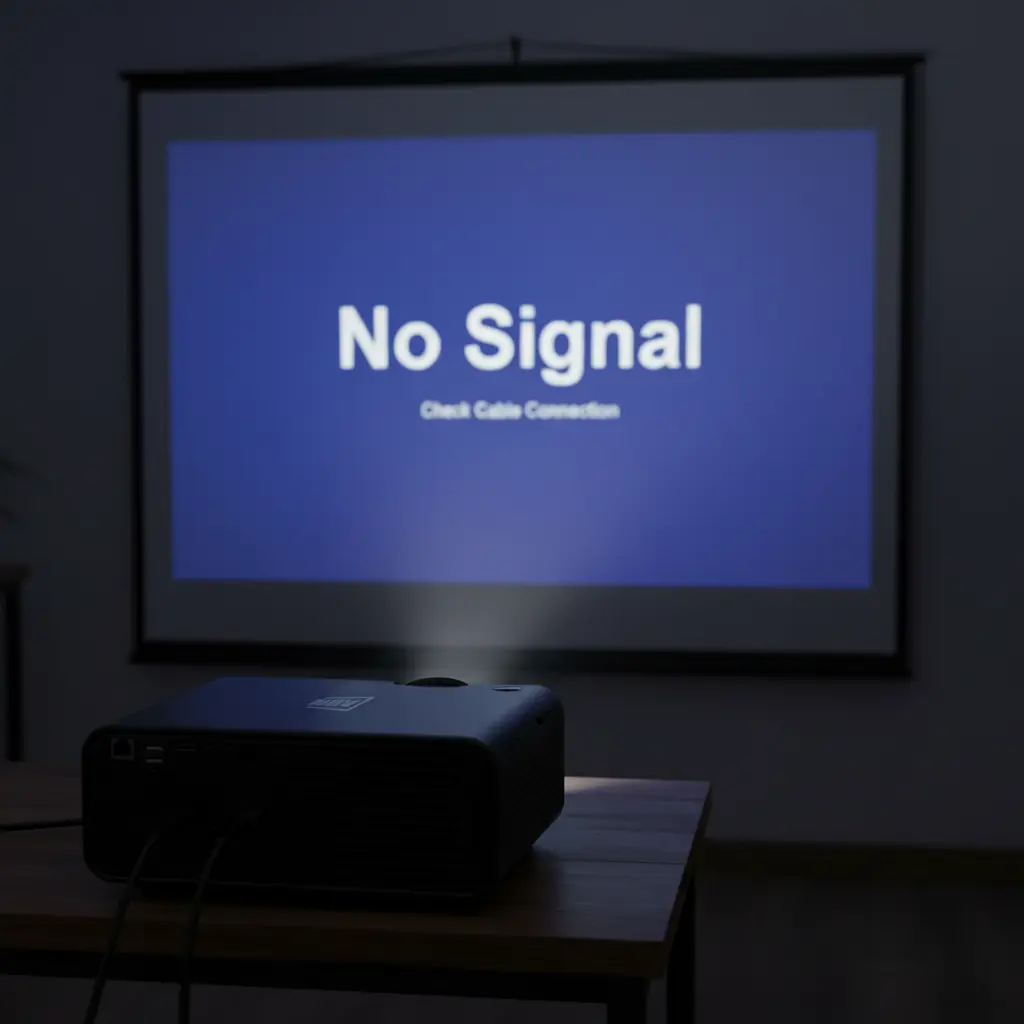
Fix “No Signal” on Projector (HDMI)
Last updated: March 2026
Solve HDMI “No Signal” fast: correct input, cable/adapter checks, HDCP/EDID handshakes, and resolution/refresh mismatches — with quick steps for laptops, TV sticks, and game consoles.
If you’re comparing models or checking the latest projector price in Bangladesh, make sure your HDMI setup is configured correctly to get the best display performance.
Common symptoms
- Projector shows “No Signal”, brand logo, or screensaver after HDMI is connected.
- Signal appears briefly when cable is wiggled → likely loose/damaged cable or port.
- Source works on TV but not on projector → often EDID/HDCP or resolution mismatch.
Quick 60-second fixes
- Set the projector input: press Input/Source until you reach HDMI 1/2 (exact port you used).
- Power cycle (handshake reset): unplug projector & source for 20–30s → plug HDMI → power on projector → then the source.
- Try another HDMI cable/port: use a short, known-good cable; avoid through-the-wall extenders initially.
- Lower the source output: set 1080p @ 60 Hz (avoid 4K/HDR for first test).

Full troubleshooting (step-by-step)
1) Cable & port sanity checks
- Inspect cable ends; reseat firmly until you feel a click. Try a different port on the projector (HDMI 1 ↔ HDMI 2).
- If using adapters (USB-C→HDMI, DP→HDMI, HDMI→VGA), test without the adapter if possible. Use active adapters for DP/USB-C.
2) Resolution & refresh match
- Projector-friendly baseline: 1920×1080 @ 60 Hz. Turn HDR off for first test.
- For older/portable projectors, also try 1280×720 @ 60 Hz.
3) HDCP/EDID handshake
- Power order matters: connect HDMI → projector ON → source ON.
- Remove splitters/AVRs first. If needed later, use quality splitters that pass HDCP and correct EDID.
4) Source settings (audio/video)
- Ensure the source is set to mirror/extend to the projector (not “PC screen only”).
- Turn off fixed VRR/120 Hz modes during testing; some projectors accept 60 Hz only.
5) Still no joy?
- Test the same source + cable on a TV. If it works there but not on the projector, it’s likely handshake or format related.
- Try another source (phone/TV stick/laptop) on the projector to isolate which device is at fault.
- If the signal only appears when you push the plug, suspect a worn HDMI port — contact service.
If your device still doesn’t display correctly, you may want to compare brightness and resolution options from our updated projector price list in Bangladesh to ensure compatibility with your source device.
Note: Older guides often suggest opening the projector and replacing ports yourself. We don’t recommend disassembly due to warranty and damage risk. Seek service instead. :contentReference[oaicite:1]{index=1}
Device-specific quick tips
Windows laptop (HDMI/USB-C)
- Press Win + P → choose Duplicate or Second screen only.
- Settings → System → Display → Multiple displays → Detect. Set Resolution = 1920×1080, Refresh = 60 Hz.
- USB-C? Use a USB-C→HDMI adapter with DP Alt-Mode.
Mac
- System Settings → Displays → hold Option to show Detect Displays.
- Set 1080p 60 Hz; disable HDR initially.
- USB-C/Thunderbolt to HDMI: use a reputable active adapter/cable.
TV sticks (Chromecast/Fire TV) & Android boxes
- Use the included power adapter (not TV USB power). Weak power = handshake failures.
- Display settings → choose 1080p 60 Hz. Turn off “Match content frame rate” while testing.
Game consoles
- Set video mode to 1080p; disable 120 Hz/VRR/HDR for initial test.
- Try another HDMI port on the projector, then another cable.
FAQ
My HDMI works on TV but not on the projector — why?
Likely an EDID/HDCP or resolution mismatch. Power cycle (projector → source), set the source to 1080p 60 Hz, and remove splitters/AVRs during testing.
Can a bad cable cause “No Signal”?
Yes. Use a short, quality HDMI cable first. If wiggling the plug affects the image, replace the cable or have the port checked.
Should I open the projector to fix the HDMI port?
No — this risks damage and warranty void. Get professional service for port repairs. :contentReference[oaicite:2]{index=2}
Looking for a New Projector?
Explore the latest projector price in Bangladesh and compare Full HD, Android, and high-brightness models suitable for home, classroom, and office use.
Related Guides
- Tips for Using a Home Projector (Beginner Checklist)
- Projector Price in Bangladesh — browse current AUN models.
References
- HDMI basics
- HDCP (handshake & content protection)
- EDID (how displays tell sources what they support)